

How to Use the Eurail Pass: A Step-by-Step Guide for First-Timers
Are you feeling intimidated about how to use the Eurail Pass for the first time? I’ve totally been there.
It can feel confusing, especially when you’ve never used it before. But don’t worry—I’ve done it multiple times, and I promise, once you get the hang of it, it’s actually pretty easy.
My husband and I have taken several European trips using the Eurail Pass. We’ve made mistakes, learned quickly from them, and now I want to share everything with you.
I know how overwhelming it can be when you’re planning your first big train trip through Europe. But this guide will walk you through the entire Eurail pass process step by step—so you can use your pass with confidence.
Whether you’re heading off on a honeymoon, a solo adventure, or a bucket-list Christmas market trip, this post will help you figure out exactly how to set up and use your Eurail Pass easily.


Short on Time? Eurail Pass Quick Guide
- Figure out Which Pass You Need
- Buy The Eurail Pass Online
- Download The App & Link Your Pass
- Create a “New Trip”
- Find and Add Your Train to “My Trip”
- Activate Your Travel Day
- Show Your Pass and Enjoy The Ride

What Is the Eurail Pass and Who Is It For?
Let’s start with the basics so we’re on the same page.
What Exactly is a Eurail Pass
The Eurail Pass is a train ticket that gives you access to most trains across 33 European countries. Instead of buying individual tickets for every train ride, you just buy the pass once and use it as you go.
There are two main types of passes:
- Global Pass (lets you travel through multiple countries)
- One Country Pass (just covers travel in one country)
I’ve used the Global Pass on almost every trip—it’s just more flexible. I did consider the One Country Pass for my Italy trip and another time for just Spain, but for my itinerary, it didn’t make sense. I found cheaper and easier options by booking individual tickets instead.
Quick Tip: If you live outside of Europe, you’ll use the Global Eurail Pass. And if you live in Europe, you’ll need the Interrail Pass. They work basically the same way.

Is the Eurail Pass for Me?
If you’re planning to visit multiple countries and travel around a lot, the Eurail Pass can be super handy. It’s all digital, really easy to use in the app, and keeps everything organized in one place.
The biggest perk for me is the flexibility. If your plans change or you miss a train (been there, done that!), It’s no big deal. You can often just hop on the next one.
It’s especially worth it for people who want a smoother travel experience without stressing about trying to figure out ticket machines and buying new tickets every time they move.
If you’re still not sure whether it’s right for you, I’ve got another post that dives deeper into everything you should consider before you purchase. So, check out my post on Is the Eurail Pass Worth It?

Figure Out Which Pass You Need
Alright, first things first, how many actual days are you traveling by train? That’s how you figure out how many travel days you’ll need on your pass.
The pass comes in a few different sizes: 4, 5, 7, 10, and 15 days.
So let’s say your trip is 14 days long, but you’re only taking the train on 10 of those days—you’d buy the 10-day pass.
But what if you’re traveling for 11 days? I’d still go with the 10-day pass and only use it on your longer or more expensive train days. On a short or cheap route, just grab a point-to-point ticket and save your pass for another day when it’s really worth it.
Quick Tip: You only activate a “travel day” when you actually use the pass. It doesn’t have to be consecutive. The pass is valid for 1 month from the first day you use it. And don’t worry—the app will ask you if you want to use a travel day before it activates one. So make sure you want to use a travel day before you tap that switch!
How to Buy and Set Up Your Eurail Pass
Okay, now let’s talk about getting your pass set up! This is way easier than it looks, I promise.
Step 1: Buy Your Eurail Pass Online
Once you know which pass is best for your trip, you can buy it online. I always look for sales! They usually run discounts a few times a year, and the Black Friday sale is the best—I got 20% off my Christmas market trip pass that way.
Here are a few places you can check for deals:
>> Check for deals on Get Your Guide Here
>> Check for deals on Rail Europe
>> Check for deals on Klook Here
>> Check for deals on the Eurail Site Here
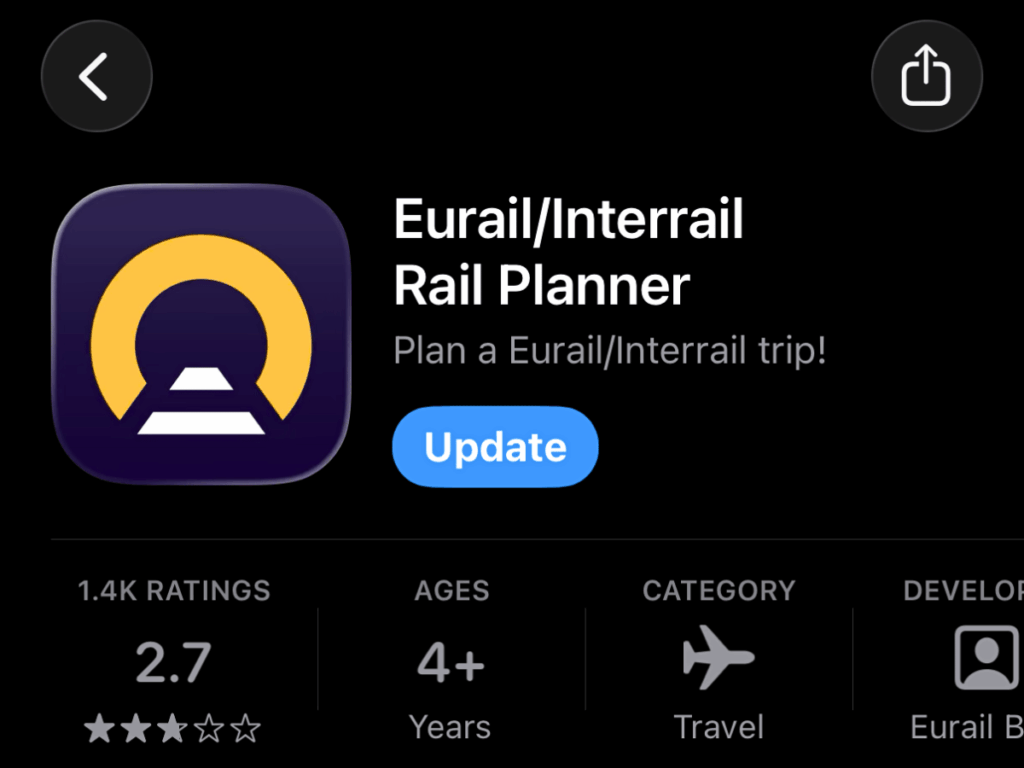
Step 2: Download the Rail Planner App
After you buy your pass, you’ll want to download the Rail Planner app. It’s free, and this is what you’ll use to actually plan and use your train passes.
Look for the official app with a navy blue train logo—it should say “Rail Planner” by Eurail.
Step 3: Link Your Pass to the App
Now that you have the app, head to the “My Pass” section. Tap “Add your Pass” and enter your name and pass number from the email confirmation you received.
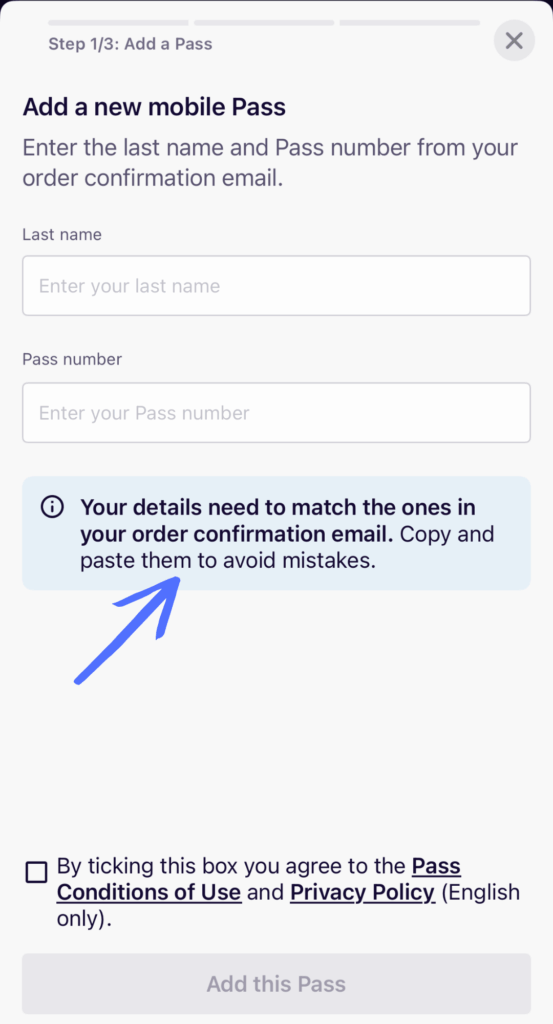
👉 Pro Tip: If you’re traveling with friends or family, you can add all their passes to your phone too. Just repeat the process and enter their details!
Step 4: Create a Trip in the App
Next, create your trip in the app.
This is how you’ll keep track of all your trains and passes in one place.
You can name your trip anything you like—I’ve used names like “Honeymoon in Europe” and “Christmas Markets.”
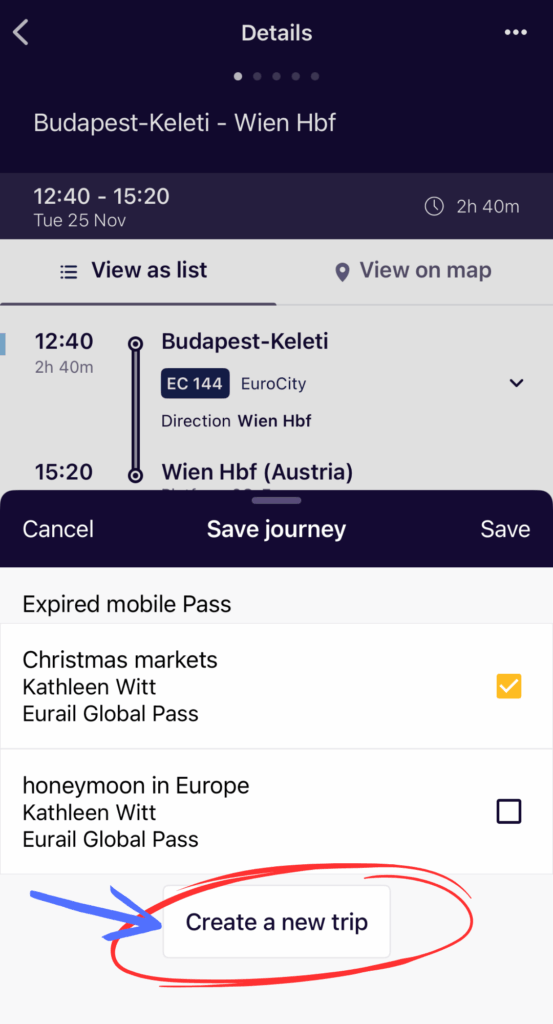
The app will prompt you to do this right after you link your pass.
Step 5: Activate Your Pass
Before you can use your pass, you have to activate it. But no need to rush—you can activate it up to 11 months after your purchase.
When you’re ready, go back into “My pass” in the app and activate it. You’ll need your passport number and the date of your first train ride. You can activate it right before your trip starts.
For example, I bought mine in November during the Black Friday sale, but didn’t use it until the following June.
Just don’t forget to go back and activate it before your first train ride!
How to Use Your Eurail Pass on Travel Days
Alright, now that everything’s set up, let’s walk through how to actually use your pass when it’s time to travel.
Step 6: Add Your Train Journey to “My Trip”
In the app, head to the Planner section. Enter your departure city, arrival city, and travel date. Tap “Plan my Journey.”
Scroll through the train options and choose the one you want.
Then hit “Save Journey.”
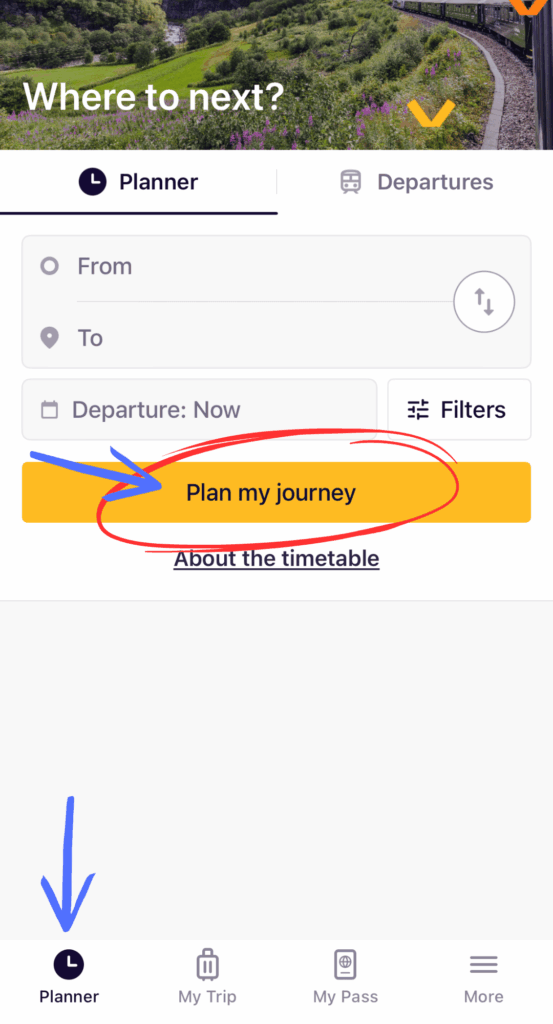
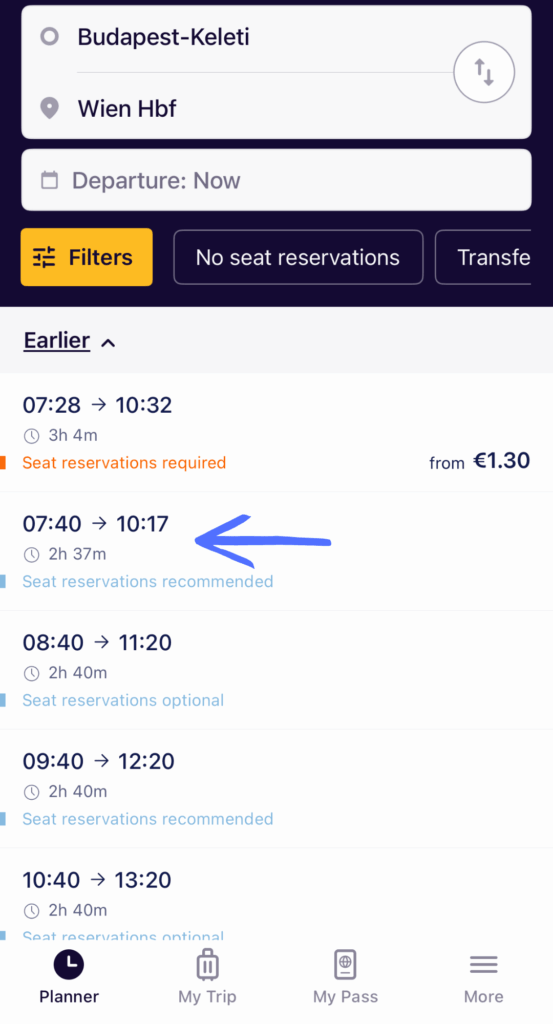
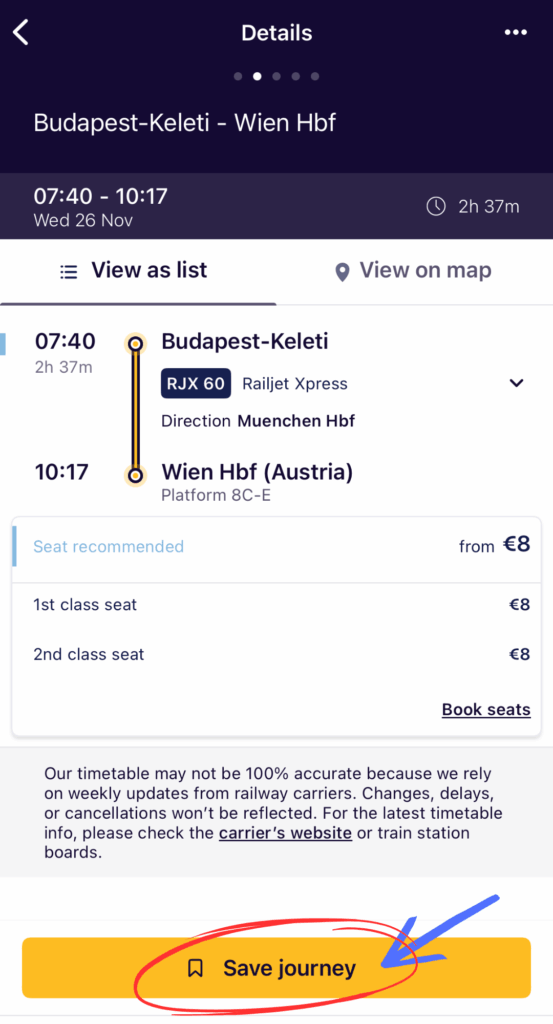
The app will ask you which trip to save it to—choose the right one if you have more than one, and save it.
Step 7: Activate Your Travel Day Before Boarding
Next, go to the My Trip section in the app.
Find your train and toggle on the little switch in the top right corner. It’ll turn yellow, which means your pass and travel day are activated.
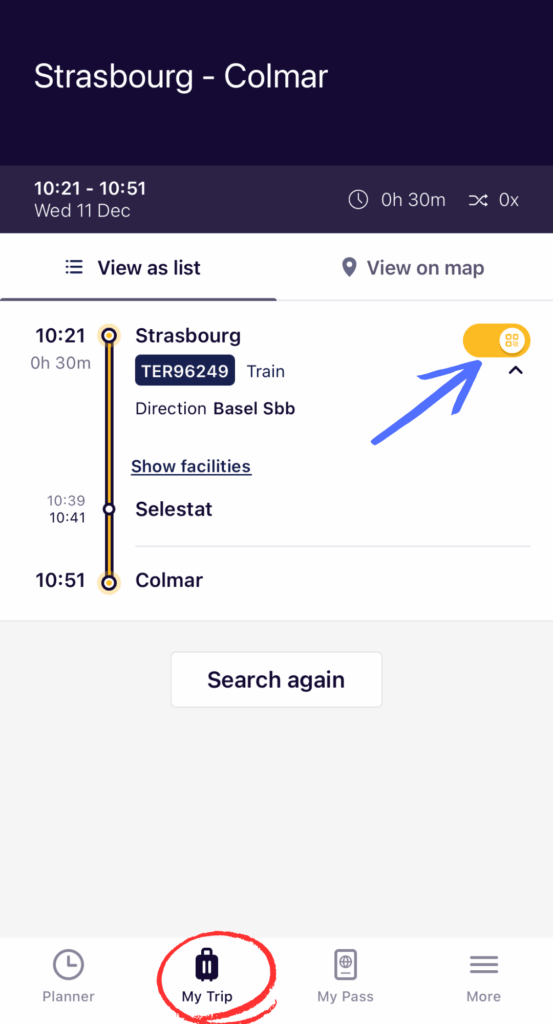
FYI: Be careful not to activate a travel day too early—once it’s used, you can’t undo it!
Step 8: Show Your Mobile Pass When Asked
When the ticket inspector comes around, open the app, go to “My Pass,” and tap “Show Ticket.” A QR code will pop up. That’s your ticket for the day.
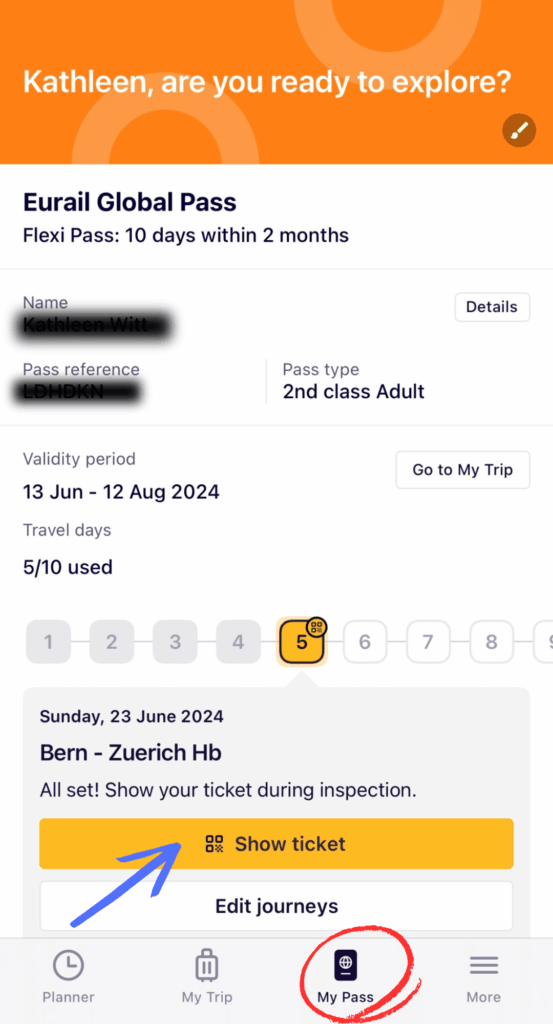
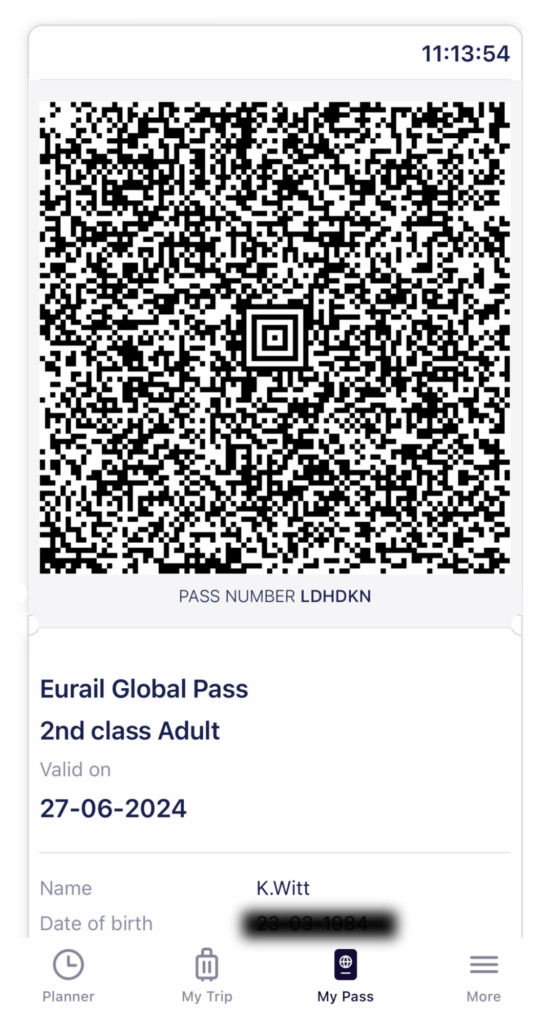
Each day has its own unique QR code. The inspector will scan it and may also check your passport or ID to make sure everything matches.
👉 Pro Tip: If you have more than one pass on your phone, you’ll need to show the ticket for each person. Just tap their name under “My Pass” and repeat.
Step 9: Repeat for Each Train Ride That Day
You’ll need to repeat steps 6–8 for every train you take. It’s a little clunky at first, but you’ll get the hang of it fast. After the first couple rides, it becomes second nature.
When and How to Reserve Seats with the Eurail Pass
Some trains require a seat reservation, which is not included in your Eurail Pass. These cost extra.
Which Trains Require Seat Reservations?
You’ll need seat reservations for most high-speed trains and all night trains. Don’t worry, the app tells you if it’s required.
Just look below the train info in the planner. It’ll say:
- “Seat reservation optional”
- “Seat reservation recommended”
- “Seat reservation required”
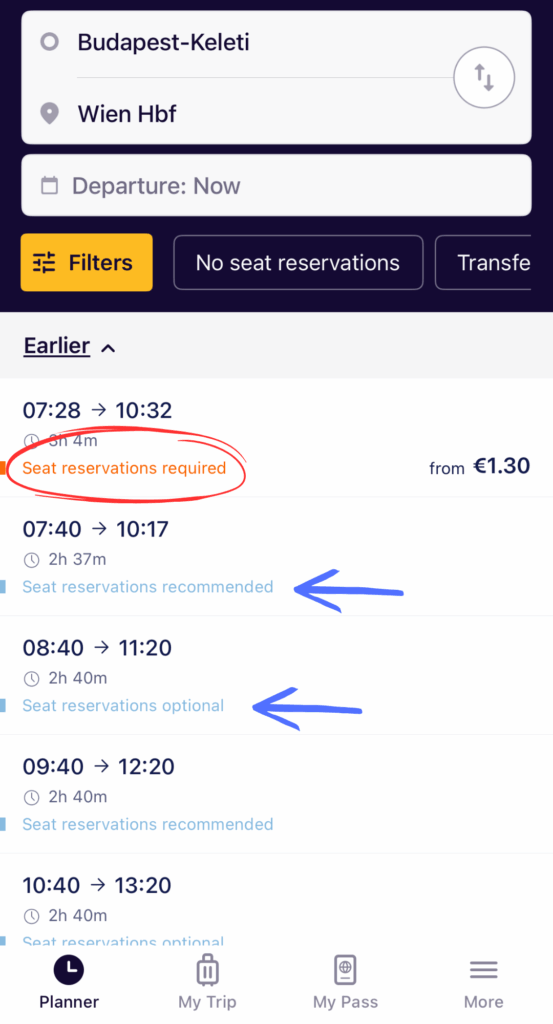
If it says “required,” I highly recommend booking in advance. Trains like the Eurostar (Paris to London) or scenic ones like the Glacier Express book up fast. And there are limited seats available for Eurail pass holders.
Trains can be booked up to 3 to 6 months in advance.
👉 FYI: You don’t need to activate your pass to make seat reservations, so you can book them ahead of time even if you’re not traveling yet.
How to Book Seat Reservations
To book your seat, go to the Eurail website directly or book through the Rail Planner app. The app will take you to the Eurail website when you click on “Book Seats.”
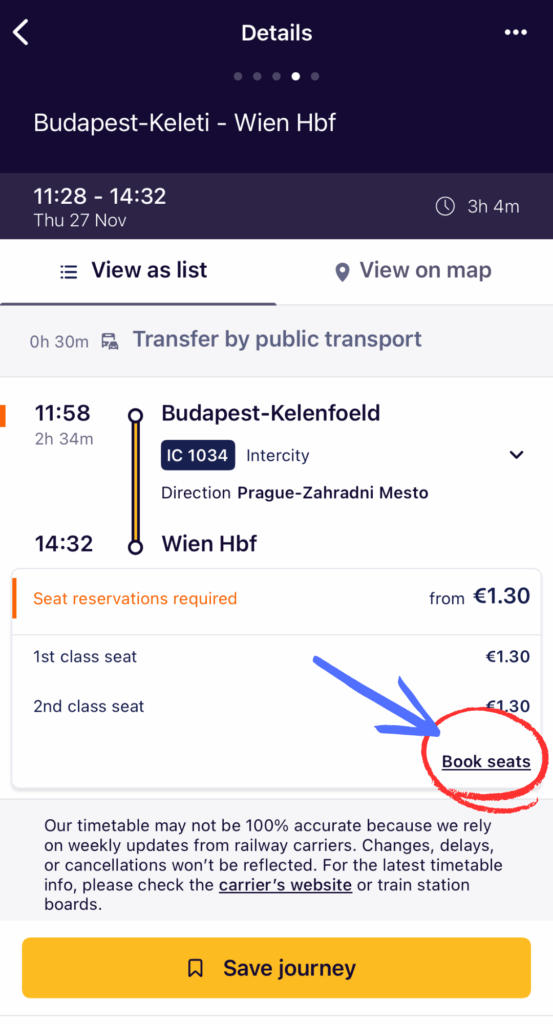
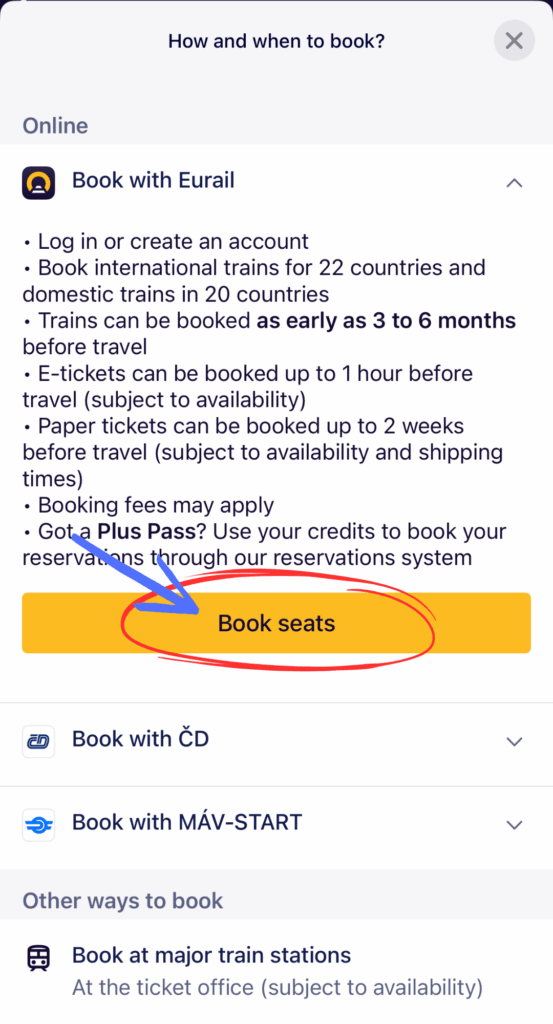
It’ll cost you 2 euros more to book with Eurail than going to each train operator’s website, but the convenience is worth it in my opinion.
You’ll get a reservation e-ticket by email. Save it to your phone, take a screenshot, or print it—just don’t lose it!
Can You Avoid Reservations? (Yes—Here’s How)
Yes, you can avoid reservations on many routes. Regional trains are a great option, and they’ll take you almost anywhere. They just might be slower or require a few more transfers.
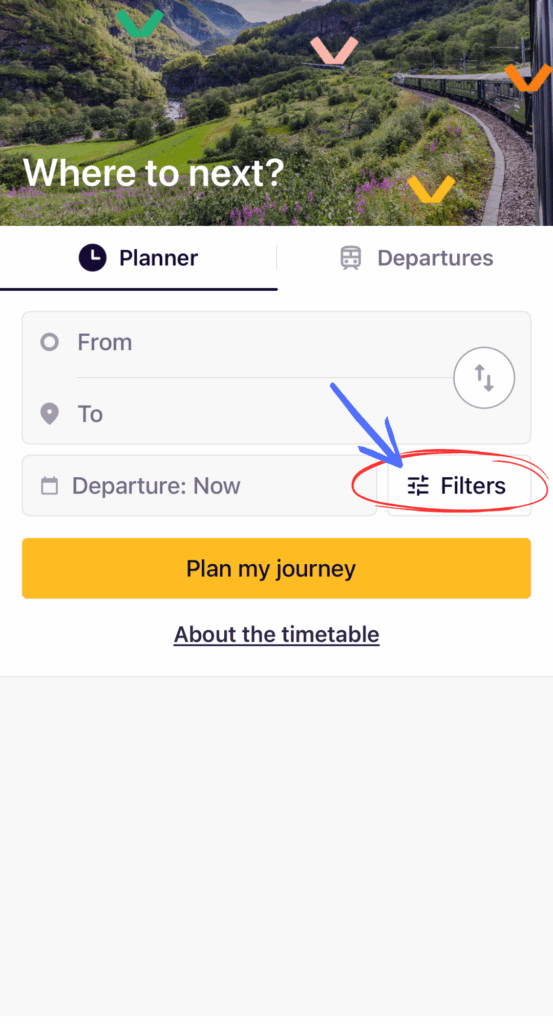
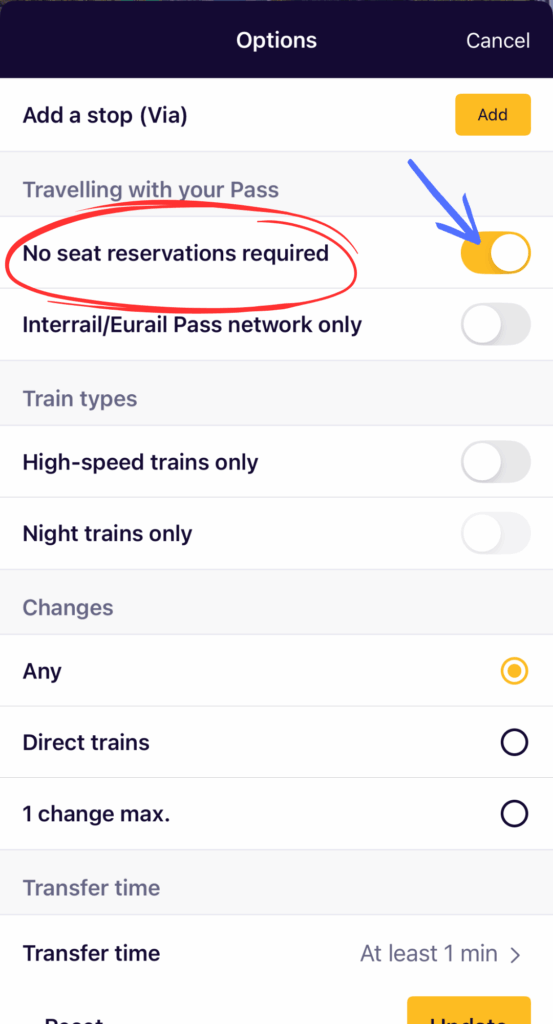
👉 Pro Tip: In the app, tap on filters in the Planner and toggle on the “No seat reservations required” option to find routes that don’t need one.
Bonus Tips for Using Your Eurail Pass Smoothly
Okay, you’re almost a pro, but here are a few extra tips to help things go even smoother…
What to Do If a Train Gets Delayed or Cancelled
The great thing about having a Eurail Pass is the flexibility. If your train gets delayed or canceled, just find the next available train and hop on. Just be sure to add that new train in the app and activate it.
The only issue might be seat reservations—they’re usually non-refundable. Rules vary by country, so check the Eurail website for refund conditions if you need more info on that.
Can You Use The Eurail App Offline?
Yes and No.
The app works offline for route planning and train times. But you’ll need internet connection to activate travel days and show your mobile ticket. That’s why I recommend getting an eSIM or data plan while you’re abroad.
What to Do If a Train Isn’t in the Eurail App
This happened to me a couple times.
If you can’t find a train in the app, don’t panic. Just look up the route information on Omio or Rail Europe, then scroll to the bottom of the Planner and tap “Can’t find your journey? Add it manually.”
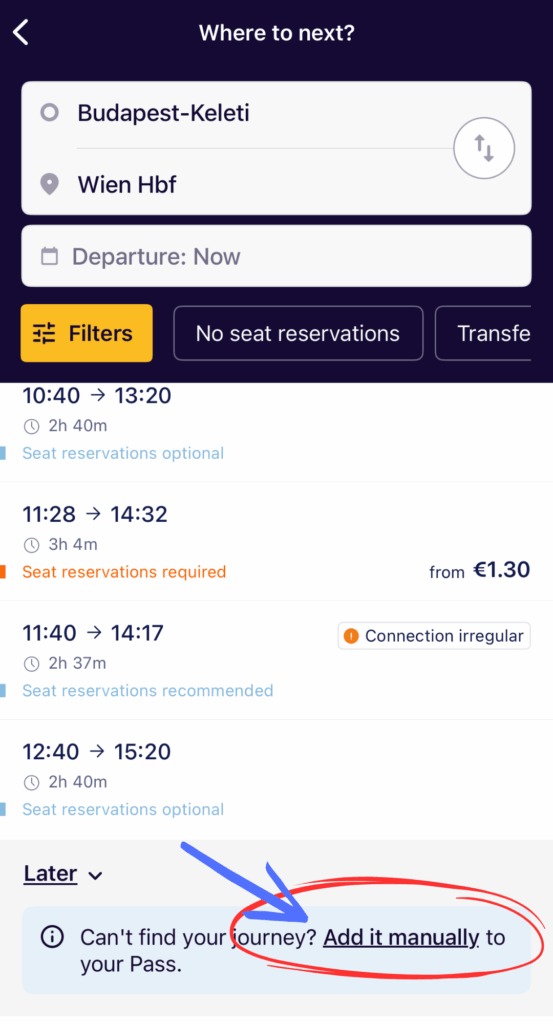
You’ll need the station names, departure and arrival times, and train number. Once you fill in all the information, tap “Save to My Trip,” and you’re good to go.
Just make sure to activate it in “My Pass”.
Avoiding Fines and Common Mistakes
It’s a sinking feeling when you make a mistake or don’t know any better and get a fine. And trust me, they are not lenient at all.
The most common fine while using a Eurail pass is failing to activate it before your trip. So always remember to toggle on the “activate Travel Day” to yellow before you hop on.
Another common fine is for not having a required seat reservation. Even if the pass itself is valid, the seat reservation is separate.
Also, the Eurail pass does not cover local transport like metros, trams, or buses, so you will need to purchase separate tickets or passes for these.
The fines are pretty hefty! They can range from 50 to 200 euros, so double-check everything before hopping on.

Final Thoughts on Using the Eurail Pass for the First Time
Figuring out how to use the Eurail Pass for the first time can feel confusing. I remember how unsure I was before my first trip. But honestly, once you go through it once or twice, it all starts to make sense. If I can figure it out, so can you.
Just follow the steps in this post, and you’ll be good to go.
And if you want a little extra help while you’re on the road, don’t forget to download my free Eurail Pocket Guide. It’s easy to print or save to your phone, and it’ll walk you through what to do so you’re not second-guessing anything while you travel.